Cloud Deployment with Terraform
Deploy TunnelMesh infrastructure to DigitalOcean using Terraform. This guide covers various deployment scenarios from simple single-node setups to multi-region mesh networks.
Prerequisites
Before you begin: Ensure you have Terraform installed, a DigitalOcean account with API token, a domain managed in DigitalOcean DNS, and an SSH key uploaded to DigitalOcean. Missing any of these will cause deployment to fail.
- Terraform installed
- DigitalOcean account with API token
- Domain managed in DigitalOcean DNS
- SSH key uploaded to DigitalOcean
Quick Start
cd terraform
cp terraform.tfvars.example terraform.tfvars

# Set your DO token
export TF_VAR_do_token="dop_v1_xxx"

# Generate auth token
openssl rand -hex 32  # For auth_token

# Edit terraform.tfvars with your domain and tokens

# Deploy
terraform init
terraform apply
Deployment Scenarios
Choose your scenario: Start simple (Scenario 1: All-in-One) and scale up as needed. Each scenario includes use cases and complete configuration. You can always add more nodes later.
TunnelMesh is flexible. Whether you need a simple personal VPN, a global team mesh, or a sophisticated multi-region network with exit peers, there's a configuration for you.
Scenario 1: All-in-One (Starter)
Recommended for beginners: This is the simplest and cheapest deployment. Start here and scale up only when you need regional presence or dedicated services.
The simplest deployment. A single droplet runs everything: coordinator, mesh peer, and exit peer. Perfect for personal use, small teams, or testing.
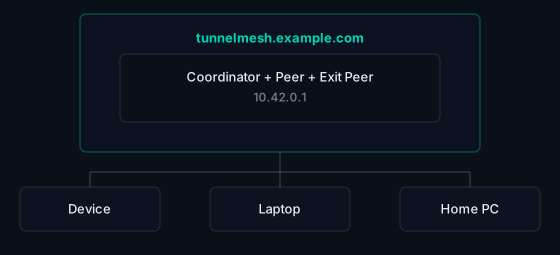
Use cases:
- Personal VPN for travel
- Small team (2-5 people) secure communication
- Home lab remote access
- Learning and experimentation
Configuration:
nodes = {
  "tunnelmesh" = {
    coordinator        = true
    peer               = true
    allow_exit_traffic = true
  }
}
Scenario 2: Exit Peer (Split-Tunnel VPN)
Route internet traffic through a specific location. Your traffic exits from a peer in another region while mesh-to-mesh communication stays direct. Great for privacy, accessing geo-restricted content, or compliance requirements.
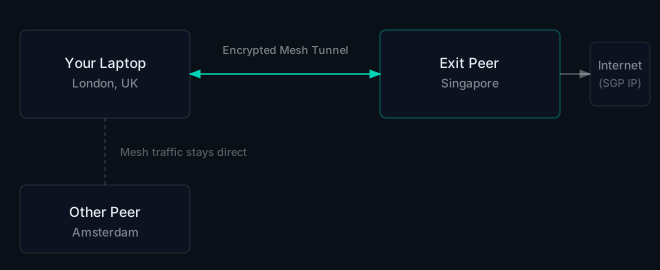
Use cases:
- Access geo-restricted streaming services
- Privacy: your ISP sees encrypted tunnel traffic, not destinations
- Compliance: ensure traffic exits from a specific jurisdiction
- Bypass censorship in restrictive networks
Configuration:
nodes = {
  "tunnelmesh" = {
    coordinator = true
    peer        = true
    region      = "ams3"
  }
  "tm-exit-sgp" = {
    peer               = true
    region             = "sgp1"
    allow_exit_traffic = true  # Accept traffic from other peers
    location = {
      latitude  = 1.3521
      longitude = 103.8198
      city      = "Singapore"
      country   = "Singapore"
    }
  }
}
On your local machine:
sudo tunnelmesh join --config peer.yaml --exit-node tm-exit-sgp --context work
Scenario 3: Multi-Region Mesh
Global presence. Mesh peers in multiple regions provide low-latency access for a distributed team. Users connect to their nearest peer and gain access to the entire mesh.
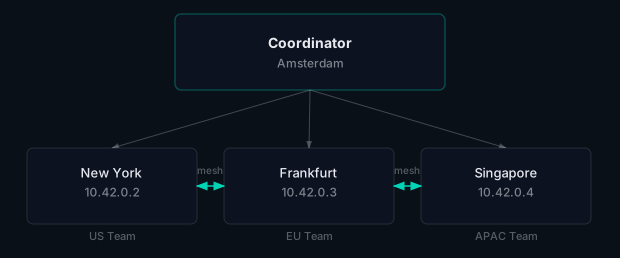
Use cases:
- Distributed development teams
- Global gaming groups wanting low-latency connections
- International organizations with regional offices
- Content creators collaborating across time zones
Configuration:
nodes = {
  "tunnelmesh" = {
    coordinator = true
    peer        = true
    region      = "ams3"
  }
  "tm-us" = {
    peer   = true
    region = "nyc3"
  }
  "tm-asia" = {
    peer   = true
    region = "sgp1"
  }
}
Scenario 4: Home Lab Gateway
Access your home network from anywhere. Run a cloud coordinator and connect your home server as a peer. Devices connect via the native client and can reach everything on your home LAN.
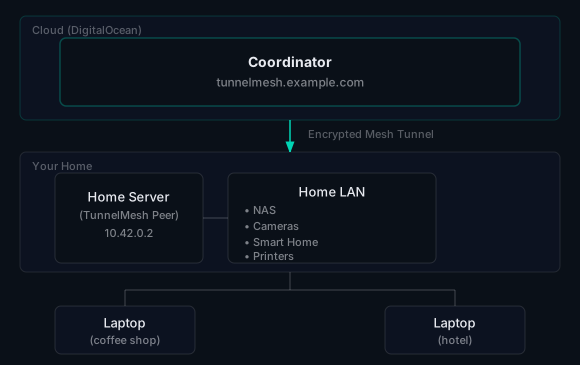
Use cases:
- Access home NAS and media server while traveling
- Check security cameras remotely
- SSH into home machines
- Run home automation from anywhere
Configuration:
# Cloud
nodes = {
  "tunnelmesh" = {
    coordinator = true
    peer        = true
  }
}
# Home server peer config
name: "homelab"

# DNS is always enabled
dns:
  aliases:
    - "nas"
    - "plex"
    - "homeassistant"
On the home server:
sudo tunnelmesh join tunnelmesh.example.com --token your-mesh-token --config peer.yaml --context homelab
sudo tunnelmesh service install
sudo tunnelmesh service start
Scenario 5: Development Team Secure Mesh
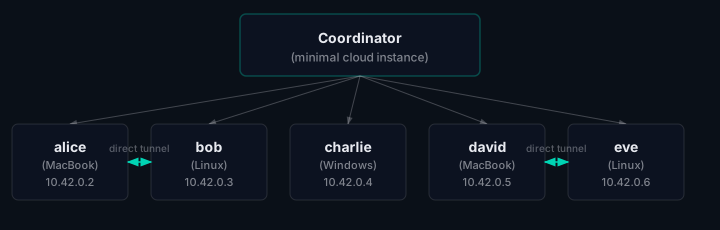
Connect developer machines directly. No VPN concentrator bottleneck. Developers can SSH into each other's machines, share local development servers, and collaborate as if on the same LAN.
Use cases:
- Pair programming with remote colleagues
- Share local development servers without ngrok
- Access team members' databases for debugging
- Collaborative CTF/security research
Configuration:
# Just the coordinator in the cloud
nodes = {
  "tunnelmesh" = {
    coordinator = true
  }
}
Each developer runs:
sudo tunnelmesh join tunnelmesh.example.com --token team-token --context team
Scenario 6: Gaming Group Low-Latency Mesh
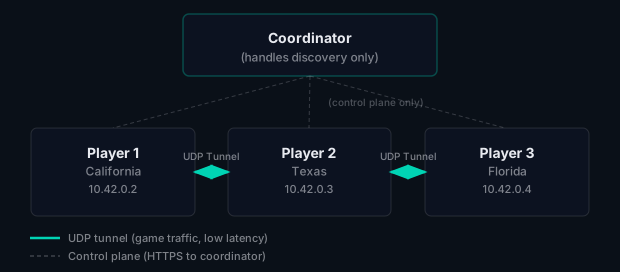
Direct connections for multiplayer gaming. Skip the public internet. Peers connect directly via UDP for minimal latency. Host game servers on any peer's machine.
Use cases:
- Minecraft servers with friends
- LAN party games over the internet
- Competitive gaming with minimal latency
- Game streaming between peers
Configuration:
nodes = {
  "tunnelmesh" = {
    coordinator = true  # Just coordination, no game traffic
  }
}
Players join from their gaming PCs:
# Automatic UDP hole-punching for lowest latency
sudo tunnelmesh join tunnelmesh.example.com \
  --token game-token \
  --name player1 \
  --context gaming
Node Configuration Reference
Each peer in the nodes map supports these options:
Core Options
| Option | Type | Description |
|---|---|---|
coordinator |
bool | Enable coordinator services on this peer (coordinators discover each other via P2P) |
peer |
bool | Join mesh as a peer |
Exit Peer Options
| Option | Type | Description |
|---|---|---|
allow_exit_traffic |
bool | Allow other peers to route internet through this peer |
exit_peer |
string | Route this node's internet through specified peer |
Infrastructure Options
| Option | Type | Default | Description |
|---|---|---|---|
region |
string | ams3 |
DigitalOcean region |
size |
string | s-1vcpu-512mb-10gb |
Droplet size |
ssh_port |
number | 2222 |
SSH tunnel port |
tags |
list | [] |
Additional droplet tags |
Location Options
| Option | Type | Description |
|---|---|---|
location.latitude |
number | Manual GPS latitude |
location.longitude |
number | Manual GPS longitude |
location.city |
string | City name for display |
location.country |
string | Country name/code |
DNS Options
| Option | Type | Description |
|---|---|---|
dns_aliases |
list | Additional DNS names for this peer |
Global Configuration Reference
Required Variables
| Variable | Description |
|---|---|
domain |
Your domain (must be in DigitalOcean DNS) |
auth_token |
Mesh authentication token (openssl rand -hex 32) |
Set your DigitalOcean API token via environment:
export TF_VAR_do_token="dop_v1_xxx"
Default Settings
| Variable | Default | Description |
|---|---|---|
default_region |
ams3 |
Default droplet region |
default_droplet_size |
s-1vcpu-512mb-10gb |
Default droplet size |
default_ssh_port |
2222 |
Default SSH tunnel port |
external_api_port |
8443 |
HTTPS port for peer connections |
Feature Flags
| Variable | Default | Description |
|---|---|---|
locations_enabled |
false |
Geographic peer visualisation (uses ip-api.com) |
monitoring_enabled |
false |
Prometheus/Grafana/Loki stack |
auto_update_enabled |
true |
Automatic binary updates |
auto_update_schedule |
hourly |
Update check frequency |
Monitoring Settings
| Variable | Default | Description |
|---|---|---|
prometheus_retention_days |
3 |
Metrics retention |
loki_retention_days |
3 |
Log retention |
Monitoring Stack
Enable observability with monitoring_enabled = true:
monitoring_enabled        = true
prometheus_retention_days = 7
loki_retention_days       = 7
Included Services
| Service | Purpose | Access |
|---|---|---|
| Prometheus | Metrics collection | /prometheus/ |
| Grafana | Dashboards | /grafana/ (admin/admin) |
| Loki | Log aggregation | Internal |
| SD Generator | Auto-discovers peers | Internal |
Pre-configured Alerts
- Peer disconnections
- Packet drops and error rates
- Resource utilization
Access Grafana from within the mesh:
https://tunnelmesh.example.com/grafana/
Node Location Tracking
The locations_enabled flag enables a world map visualisation showing where your mesh peers are located.
Disabled by default because it:
- Uses external API (ip-api.com) for geolocation
- Sends peer public IPs to external service
- Requires coordinator internet access
Manual Coordinates
Override IP geolocation with precise coordinates:
nodes = {
  "datacenter-1" = {
    peer = true
    location = {
      latitude  = 52.3676
      longitude = 4.9041
      city      = "Amsterdam"
      country   = "NL"
    }
  }
}
Outputs
After terraform apply:
terraform output
| Output | Description |
|---|---|
coord_url |
Coordinator URL |
admin_url |
Admin dashboard URL |
peer_config_example |
Example peer configuration |
node_ips |
Map of peer names to IPs |
Managing the Deployment
Update Configuration
vim terraform.tfvars
terraform apply
View Logs
ssh root@<node-ip> journalctl -u tunnelmesh -f
Destroy
terraform destroy
Troubleshooting
Peers Can't Connect
- Check auth tokens match
- Verify firewall allows ports 8443 (HTTPS), 2222 (SSH)
- Check coordinator logs:
journalctl -u tunnelmesh
High Latency
- Check transport type (UDP is fastest):
tunnelmesh peers - Verify direct connectivity (not relaying)
- Consider adding regional nodes
Security Best Practices
- Strong tokens:
openssl rand -hex 32for auth token - Rotate periodically: Update tokens and redeploy
- Mesh-only admin: Admin dashboard only accessible from within the mesh network
- Enable monitoring: Visibility into access patterns
- Auto-updates: Keep peers patched
Example: Complete terraform.tfvars
# Required
domain      = "example.com"
auth_token  = "your-64-char-hex-auth-token"

# Peers - Multi-region with exit peer
nodes = {
  "tunnelmesh" = {
    coordinator        = true
    peer               = true
    allow_exit_traffic = true
    region             = "ams3"
  }
  "tm-exit-us" = {
    peer               = true
    allow_exit_traffic = true
    region             = "nyc3"
    location = {
      latitude  = 40.7128
      longitude = -74.0060
      city      = "New York"
      country   = "US"
    }
  }
  "tm-asia" = {
    peer   = true
    region = "sgp1"
  }
}

# Settings
ssh_key_name       = "my-key"
locations_enabled  = true
monitoring_enabled = true

# Retention
prometheus_retention_days = 14
loki_retention_days       = 7
TunnelMesh is released under the AGPL-3.0 License.